
How To Walk And Fly Through Drawings In ActCAD?
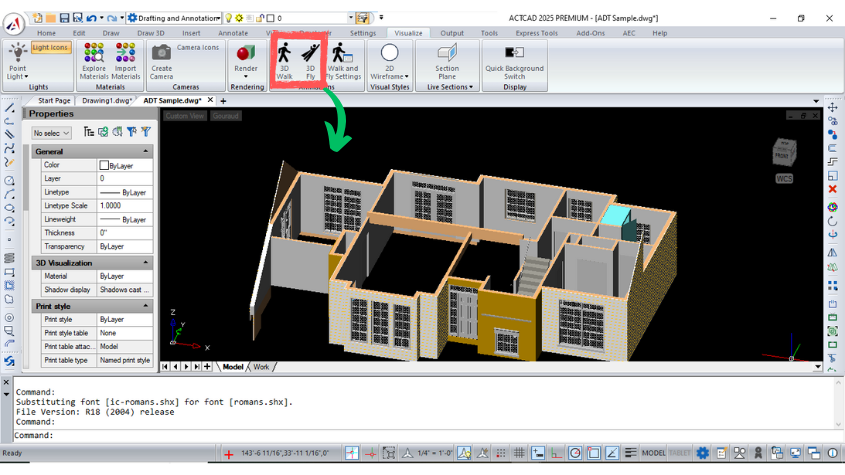
1 Do one of the following to choose 3D Walk
- On the menu, choose View > Walk and Fly > 3D Walk or 3D Fly.
- On the Walk and Fly toolbar, click the 3D Walk or 3D Fly tool.
- Type 3dwalk or 3Dfly and then press Enter.
2 Click and drag in the drawing to walk or fly through the model, or use the arrow keys on the keyboard. When finished, release the mouse button.
3 Repeat to walk or fly again.
4 When finished, press Enter, right-click the drawing, or press Esc.
To customize walk and fly settings
1 Do one of the following to choose Walk and Fly Settings

- On the menu, choose View > Walk and Fly > Walk and Fly Settings.
- On the Walk and Fly toolbar, click the Walk and Fly Settings tool.
- Type 3dwalkflysettings and then press Enter.
2 In Step Size, enter the value for the step size in drawing units, then enter the speed in steps per second.
3 Mark Prevent Clipping if you want to disable clipping.
4 In Lens Length, enter the value for the lens length you want to use. This value applies only when using the 3D Walk and 3D Fly commands; it does not change the default lens length that is determined by the LENSLENGTH system variable.
5 In Walk Elevation, specify the elevation to apply to walk mode during the 3D Walk command.
6 Click OK.
To know more about this feature go through our YouTube video 3D Walk Through 3D Fly.


