
Using TextMerge and TextAlign
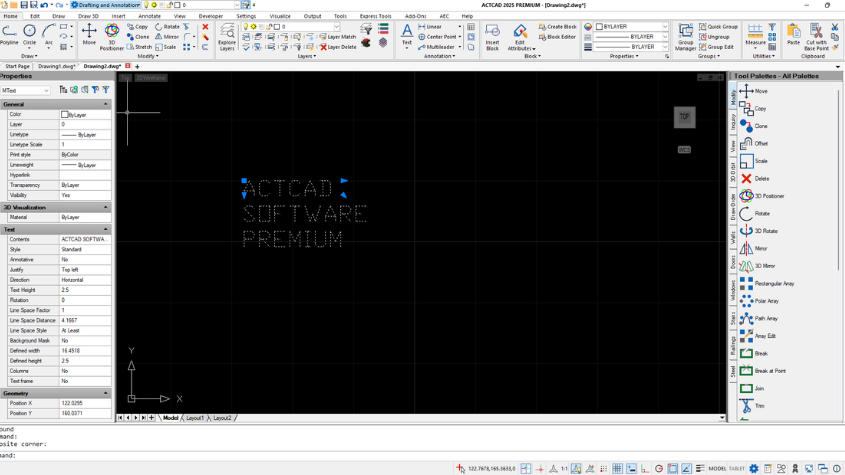
TEXT MERGE:
It is the process of combining multiple individual text objects to create one multi-line text object.
How to Use TEXTMERGE in ACTCAD?
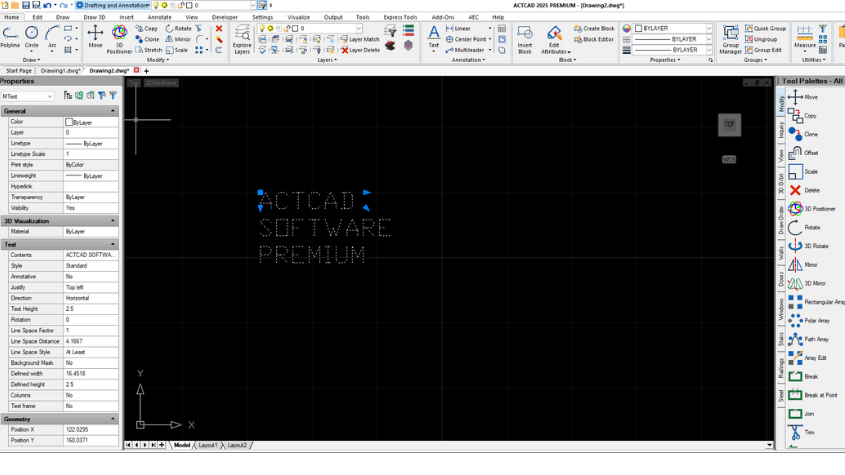
1. Select TEXTMERGE from Annotate Menu
Annotate > TEXTMERGE
2. Select the Entities to Perform TEXTMERGE
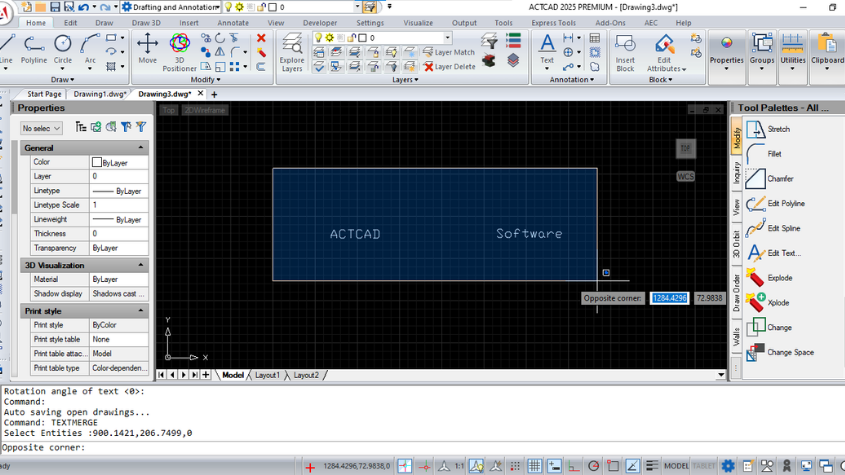
3. Press Enter
4. Now you can see the Single text converted to Multiline Text
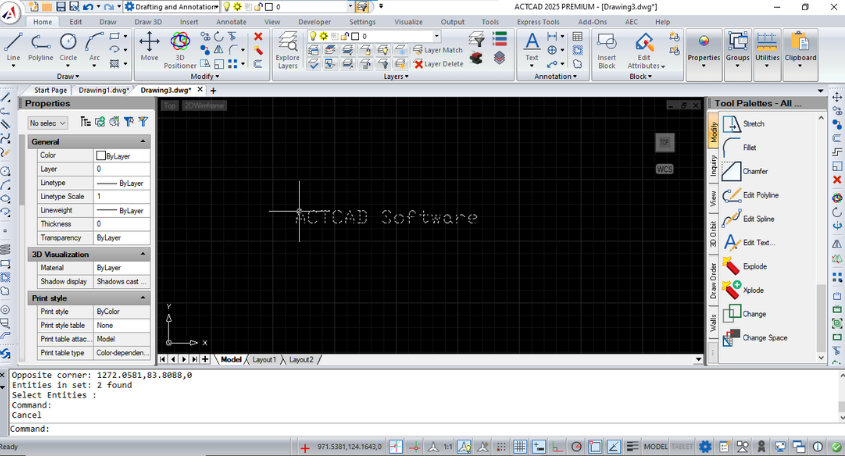
TEXTALIGN :
Allows multiple text objects to be aligned to a base object and provides a preview of the result.
How to Use TEXTALIGN in ACTCAD?
1. Click Annotate > TextAlign (or type TextAlign).
2. Select the entities to align.
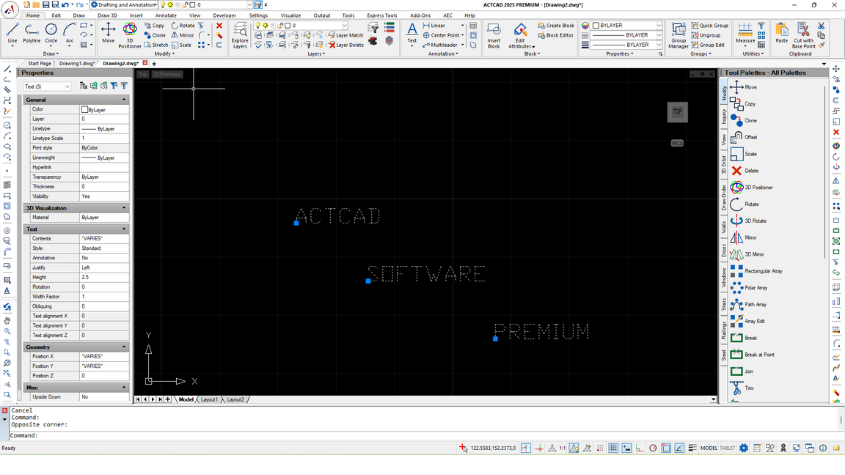
3. Press Enter.
4. Select text option to align text based on the position of the text selected
5. Select point option to specify the first and second point to align the text
Alignments:
It sets the Alignment orientation of the text
- Left (default setting)
- Center
- Right
- TL (top left)
- TC (top center)
- TR (top right)
- ML (middle left
- MC (middle center)
- MR (middle right)
- BL (bottom left)
- BC (bottom center)
- BR (bottom right)
Options
- Distribute : Spaces objects evenly between two selected points.
- Set Spacing : It provides the spacing between the selected entities to align.
- Current Vertical : It aligns the vertical positioning of the text object.
- Current Horizontal : It aligns the horizontal positioning of the text object.


